Task Manager
What is the Task Manager?
The Task Manager panel in Synergy IDE enables users to view, manage, and control projects that are either currently running or saved in the system. It is especially useful for debugging, runtime validation, and tracking which agent is executing a specific project.
Task Manager Tabs
The panel contains two main tabs:
1. Running Projects
This tab displays all projects currently running on the selected Deploy Agent.
Deploy Agent Dropdown: Lists available runtime agents. Select one to view its associated projects.Project Name: Lists the active projects under the selected agent.Auto Start: Indicates whether the project is configured to start automatically when the system boots.- Options: Yes, No, or (All) — for filtering
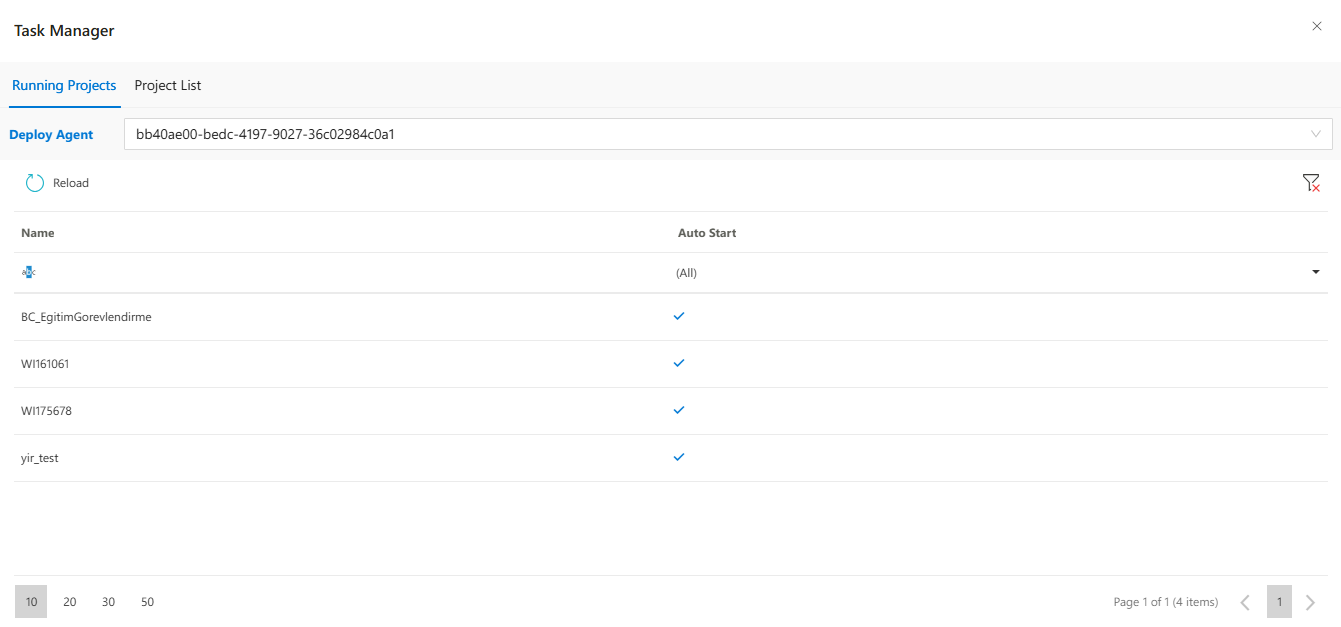
- Options: Yes, No, or (All) — for filtering
2. Project List
This tab lists all saved projects in the system, regardless of deployment status.
Project Name: The name of the project saved in the workspace.Path: The file path and folder structure of the project in the system.- You can click the refresh icon to update the list.
- Pagination controls are available at the bottom.
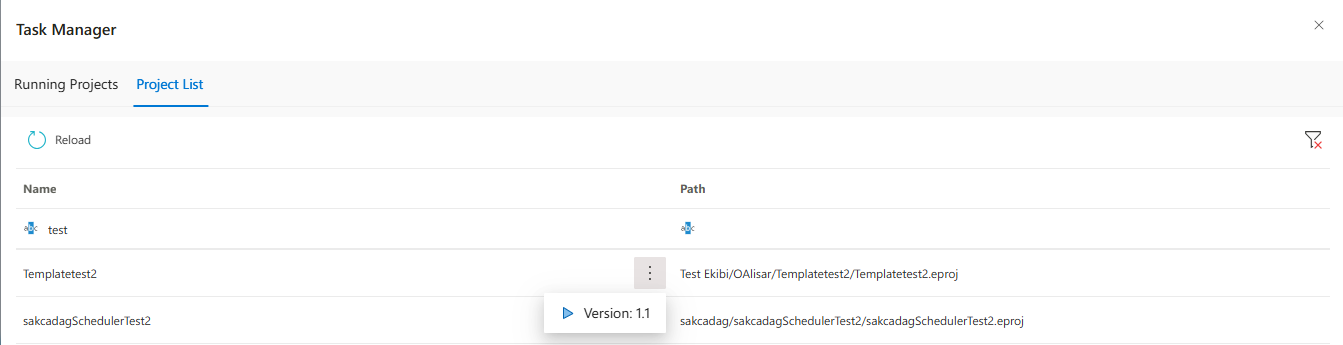
Project Actions (⋮ Menu)
In the Running Projects tab, when you click the three-dot menu (⋮) next to a project, the following actions become available:
Version: Displays the published version of the project.Stop: Terminates the currently running instance of the project.View Logs: Opens the runtime logs of the selected project (used for debugging and inspection). This feature is useful for real-time monitoring and management of project instances.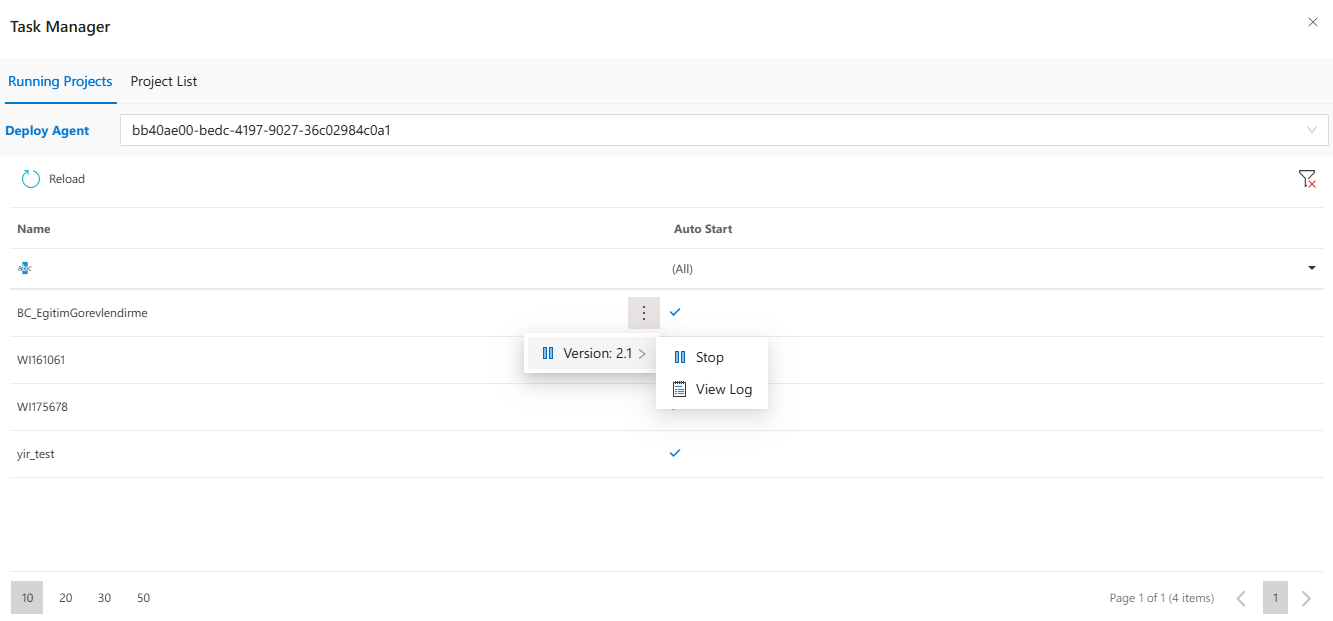
Additional Features
Refresh: Reloads the project or running project list.Filter: Filter records based on auto-start status.Pagination: Select how many records to display per page (10, 20, 30, 50).
Use Cases
- Ensure that critical projects are configured to auto-start.
- Monitor which agent is executing which solution.
- Diagnose deployment issues by comparing published and saved projects.
- Instantly view logs for failed or unstable deployments.
Best Practices
- Regularly check the
Running Projectstab to ensure that important processes are active. - Use clear and consistent project names for easier management.
- When diagnosing issues, check logs using the "View Logs" option.
See Also
- #linkDocument (DeveloperGuides.IDE.Modals.TaskManager.HowTos)
- #linkDocument (DeveloperGuides.IDE.Modals.TaskManager.FAQs)
FAQs
- What Is Deploy Agent
- Can I stop a project that is currently running?
- What does the "Deploy Agent" dropdown do?